Custom bot
Run Discord Buddy in your server under your own bot name, avatar and status. Step-by-step Developer Portal setup, token, intents and invite.
On this page
- Before you start
- Create your bot in the Developer Portal
- Connect it to Buddy
- Settings explained
- Connection status messages
- Premium
- Troubleshooting
- The status says the token is invalid
- The bot is online but doesn't respond
- Messages are coming from the main Buddy bot instead
- I want to switch back to the normal Buddy
- Related
With a custom bot, Buddy's features run under your bot: your name, your avatar, your "Playing" status. Members see your brand instead of Discord Buddy, while you keep using the same dashboard and commands. You create the bot once in Discord's Developer Portal, paste two values into the dashboard, and invite it.
Before you start#
Custom bots need a Premium plan that includes Custom bot tools (Premium++). Without it, the Custom bot page shows a Compare Premium plans button instead of the settings.
Custom bots are experimental and may not always work as expected. Please report problems in
#premium-support on the Discord Buddy server.
- A custom bot works in one server only: the one you set it up for. Inviting it to other servers may make it unresponsive.
- You'll need a Discord account that can create applications at discord.com/developers/applications.
- Keep the main Discord Buddy bot in your server. If your custom bot isn't in the server, goes offline or your plan lapses, the main bot takes over so welcome messages, logs and roles keep working.
Create your bot in the Developer Portal#
Sign in at discord.com/developers/applications.
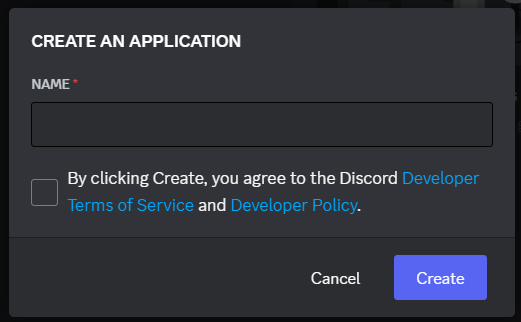
Enter your bot's name in the pop-up, then click Create.
On General Information, set the name, description and tags. The description becomes the bot's About Me that members see when they click it.
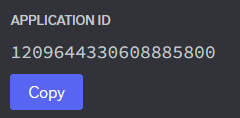
Copy the Application ID from General Information. You'll paste it into the dashboard.
This is the name shown everywhere the bot appears: messages, the member list and more.

On the Bot tab, copy the token. If it isn't shown, click Reset Token. Never share it: anyone with the token can control your bot.

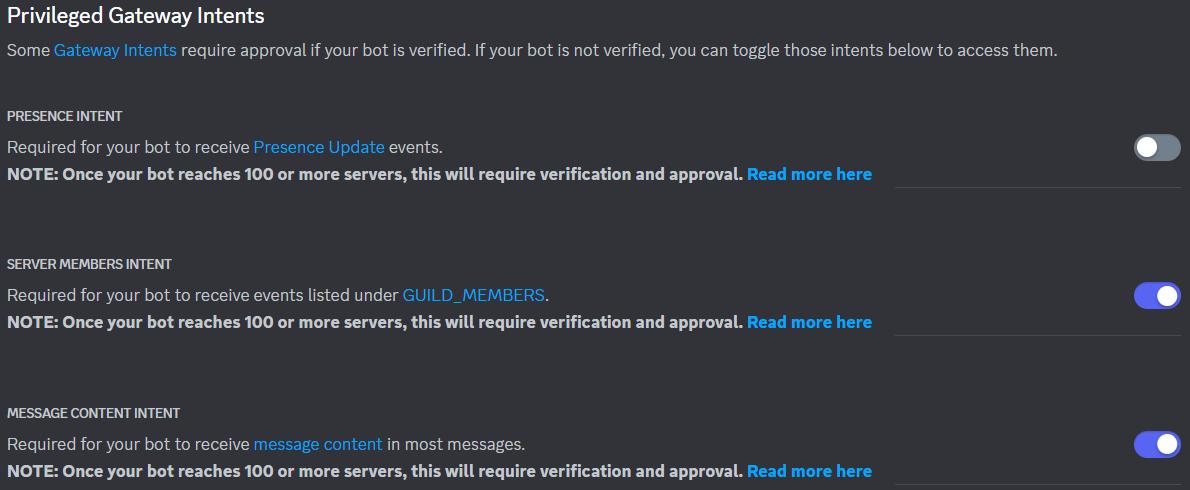
Still on the Bot tab, enable Server Members Intent and Message Content Intent, then save. The bot will not start without them.
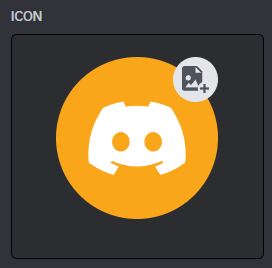
Click the icon to upload an avatar for your bot.
Connect it to Buddy#
It's under Branding in the sidebar.
In Your bot, paste the Application ID and Bot token, and optionally type a Status text.
Click Save bot settings. Buddy tries to start your bot within about a minute.
The Invite your bot card now shows an Invite your bot button. Click it and add the bot to your server.
The Connection status card shows what happened the last time Buddy tried to start your bot. You want to see Bot Is Online.
After your bot joins, its slash commands can take up to an hour to appear. Restarting Discord sometimes speeds this up.
Settings explained#
| Setting | What it does |
|---|---|
| Application ID | Your bot's ID, from General Information in the Developer Portal. |
| Bot token | Your bot's secret token, from the Bot tab. For safety, the dashboard never shows a saved token again; it only shows the last four characters. Leave the field empty to keep the saved token, or paste a new one to replace it. |
| Status text | Shown under your bot's name in the member list, after "Playing". Up to 32 characters. |
| Disconnect bot | Takes your bot offline and clears its Application ID and token from your account. You can connect a bot again any time. |
The invite button adds your bot with the Administrator permission, so it can run every Buddy feature without extra setup.
Connection status messages#
| Message | What it means |
|---|---|
| Bot Is Online | Everything's working. |
| Bot Is Offline | The bot isn't running right now (for example it was disconnected). |
| Bot is Offline. Bot Token Invalid. / Token Invalid. | The token is wrong or was reset, or the required intents are off. |
| Bot is Offline. Bot Application ID Invalid. | The Application ID is missing or wrong. |
Premium#
Custom bots are only available on plans with Custom bot tools. If your plan changes and no longer includes them, your custom bot is taken offline and the main Discord Buddy bot serves your server again. Your saved Application ID and token stay on your account until you click Disconnect bot. See Premium.
Troubleshooting#
The status says the token is invalid#
- Copy the token again from the Bot tab (click Reset Token if needed), paste it into Bot token and save.
- Make sure Server Members Intent and Message Content Intent are both turned on in the Developer Portal. "Invalid token" often means one of them is off.
- After a failed login, Buddy won't retry the same token. Save the corrected token to try again.
The bot is online but doesn't respond#
- Make sure you invited it with the Invite your bot button, to the same server you set it up for.
- Don't invite it to other servers. A custom bot only works in its own server.
- Wait for slash commands to appear (up to an hour), then restart Discord.
Messages are coming from the main Buddy bot instead#
The main bot steps in when your custom bot isn't in the server, can't start, or your plan no longer includes custom bots. Check the Connection status card and that your bot is a member of the server.
I want to switch back to the normal Buddy#
Click Disconnect bot and confirm. Your bot goes offline within about a minute, and the main Discord Buddy bot handles your server again. You can then kick your custom bot from the server.